20% Off Calendars & Yearly Planners
Hurry, Offer Ends 10/08/2026
Get The Details
Designed for the power user, Bay ROES is full of ordering features and includes our complete catalog of products.
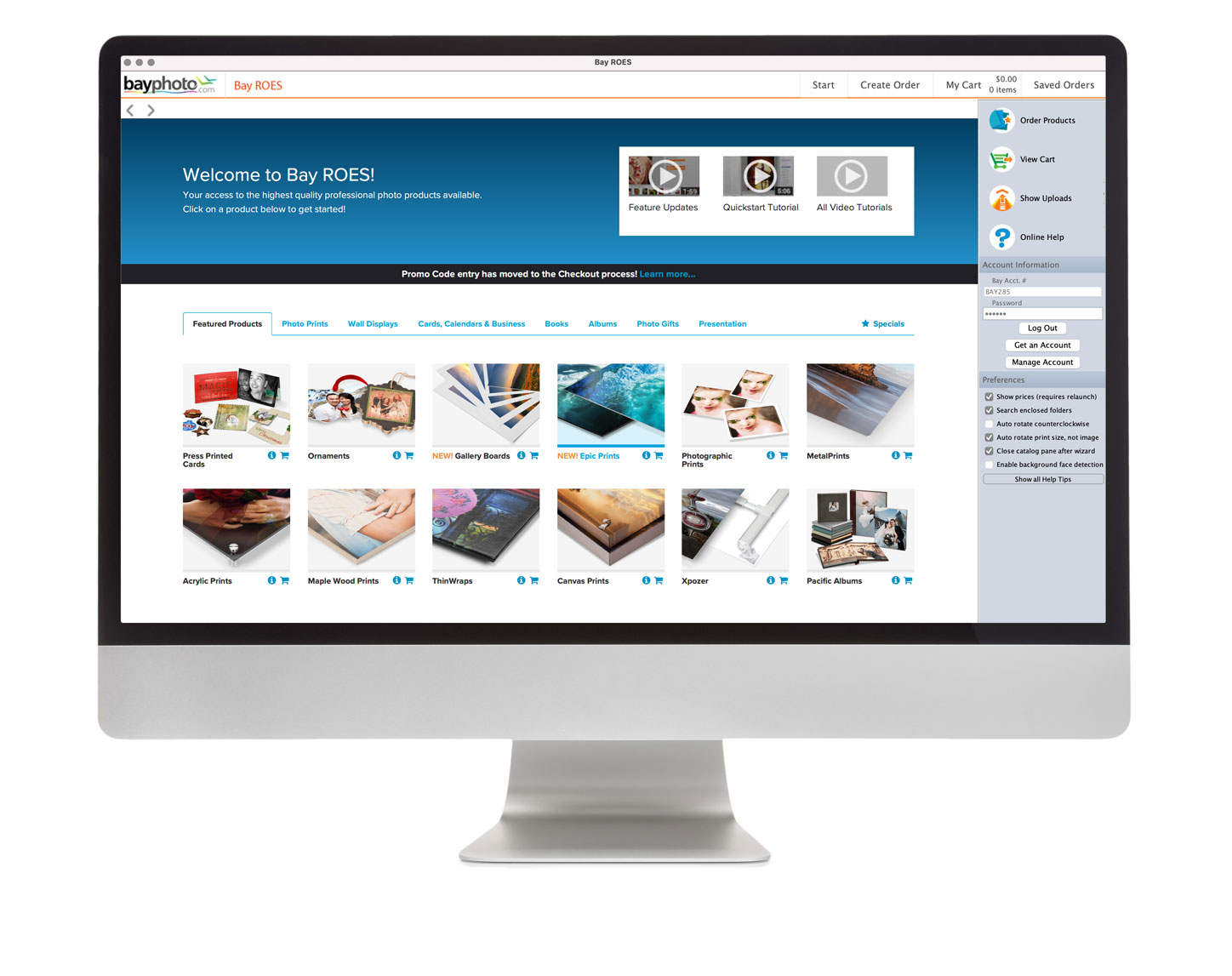
To get started, all you need is a Bay Photo Account! Sign up here...
Bay ROES is PC and Mac OS X Compatible
We offer a variety of video tutorials to help you get started.
Video TutorialsIf you get stuck at any point, please don't hesitate to get in touch.
Browse our Support Articles & FAQs
The program should begin launching in a few seconds, but if not, please click here to do a direct launch.
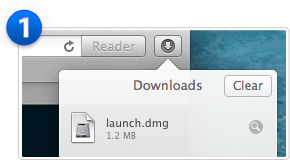
Download the Installer File
A small file named launch.dmg is downloading. If needed, you can restart the download by clicking here.
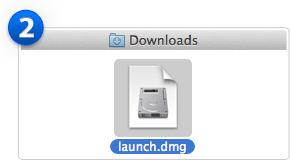
Open the launch.dmg File
If the file doesn’t open automatically, you might need to double-click the launch.dmg file in your Downloads folder.
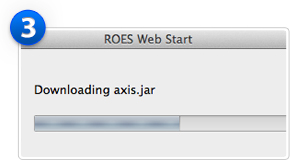
Follow the Prompts to Install
ROES Web Start will run and lead you through the necessary prompts to launch Bay ROES on your computer.

The program should begin launching in a few seconds, but if not, please click here to do a direct launch.
Download the Installer File
A small file named launch.dmg is downloading. If needed, you can restart the download by clicking here.
Open the launch.dmg File
If the file doesn’t open automatically, you might need to double-click the launch.dmg file in your Downloads folder.
Follow the Prompts to Install
ROES Web Start will run and lead you through the necessary prompts to launch Bay ROES on your computer.

The program should begin launching in a few seconds, but if not, please click here to do a direct launch.
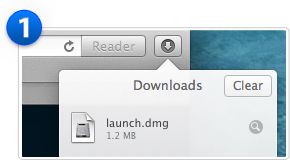
Download the Installer File
A small file named launch.dmg is downloading. If needed, you can restart the download by clicking here.
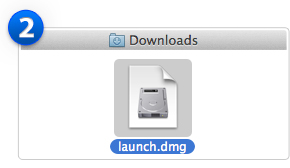
Open the launch.dmg File
If the file doesn’t open automatically, you might need to double-click the launch.dmg file in your Downloads folder.
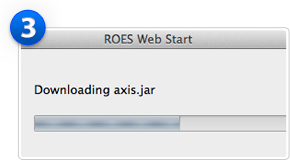
Follow the Prompts to Install
ROES Web Start will run and lead you through the necessary prompts to launch Bay ROES on your computer.
The program should begin launching in a few seconds, but if not, please click here to do a direct launch.
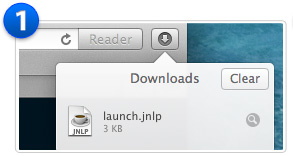
Download the Launch File
A small file named launch.jnlp is downloading. Once downloaded, the file should open automatically and start loading the Bay ROES catalog. If needed, you can restart the download by clicking here.
Open the File
Double-click the launch.jnlp file in your Downloads folder. If you are told the file cannot be opened because it is from an unidentified developer, hold down the Control Key while you click on the file and select "Open."
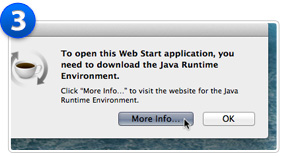
Java Runtime Environment
You may be prompted to download the Java Runtime Environment before you can open the file. If this happens, click the "More Info..." button and follow the instructions to download and install Java for Mac OS X. You will only have to do this once. After the installation, double-clicking on the launch.jnlp file will launch Bay ROES.
The program should begin launching in a few seconds, but if not, please click here to do a direct launch.
Download the Launch File
A small file named launch.jnlp is downloading. Once downloaded, the file should open automatically and start loading the Bay ROES catalog. If needed, you can restart the download by clicking here.
Open the File
Double-click the launch.jnlp file in your Downloads folder. If you are told the file cannot be opened because it is from an unidentified developer, hold down the Control Key while you click on the file and select "Open."
Java Runtime Environment
You may be prompted to download the Java Runtime Environment before you can open the file. If this happens, click the "More Info..." button and follow the instructions to download and install Java for Mac OS X. You will only have to do this once. After the installation, double-clicking on the launch.jnlp file will launch Bay ROES.
The program should begin launching in a few seconds, but if not, please click here to do a direct launch.
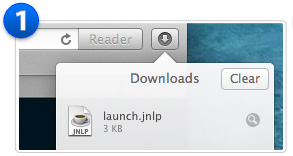
Download the Launch File
A small file named launch.jnlp is downloading. Once downloaded, the file should open automatically and start loading the Bay ROES catalog. If needed, you can restart the download by clicking here.
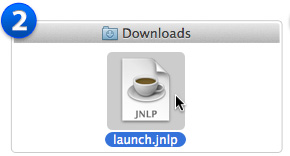
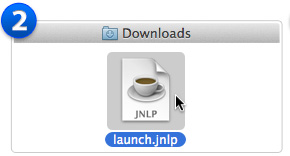
Open the File
Double-click the launch.jnlp file in your Downloads folder. If you are told the file cannot be opened because it is from an unidentified developer, hold down the Control Key while you click on the file and select "Open."
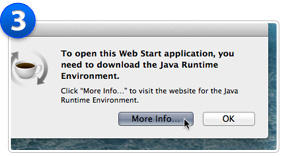
Java Runtime Environment
You may be prompted to download the Java Runtime Environment before you can open the file. If this happens, click the "More Info..." button and follow the instructions to download and install Java for Mac OS X. You will only have to do this once. After the installation, double-clicking on the launch.jnlp file will launch Bay ROES.
The program should begin launching in a few seconds, but if not, please click here to do a direct launch.
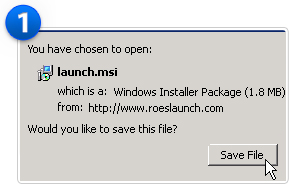
Download the Launch File
A small file named launch.msi is downloading. Click Save File if prompted.
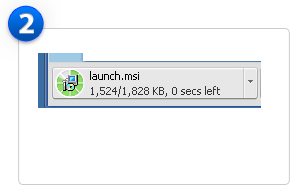
Open the Launch File
If the launch.msi file does not automatically open, click on launch.msi in your browser’s downloads to open it.
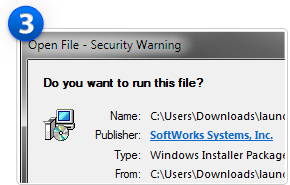
Run the Installer Package
You may see a Security Warning window appear. If so, it is safe to click Run to continue installing Bay ROES.
Please check to see if you have a previously installed version of Bay ROES, and start the application directly from your computer. Learn more...
The program should begin launching in a few seconds, but if not, please click here to do a direct launch.
Start the Launch
Java from Oracle is required to run Bay ROES. A small file named launch.jnlp is being downloaded, and will be opened automatically by Java within a few seconds. If nothing happens, you can try a direct launch by clicking here.
Dismiss the Security Warning
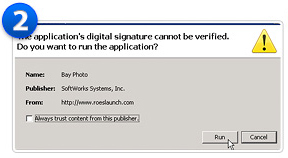
You may see a Security Warning window appear. If so, it is safe to click Run to continue launching Bay ROES.
What if I don't have Java?
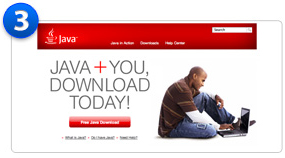
If you do not have Java installed, you can download it for free from the Java website by clicking here. Once Java is installed, you will need to relaunch Bay ROES.
Please check to see if you have a previously installed version of Bay ROES, and start the application directly from your computer. Learn more...
The program should begin launching in a few seconds, but if not, please click here to do a direct launch.
Download the Launch File
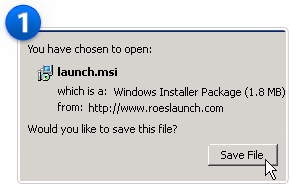
A small file named launch.msi is downloading. Click Save File if prompted.
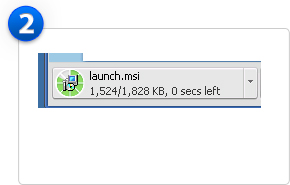
Open the Launch File
If the launch.msi file does not automatically open, click on launch.msi in your browser’s downloads to open it.
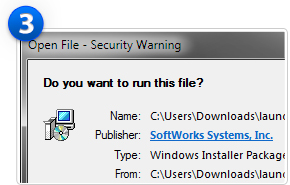
Run the Installer Package
You may see a Security Warning window appear. If so, it is safe to click Run to continue installing Bay ROES.
Please check to see if you have a previously installed version of Bay ROES, and start the application directly from your computer. Learn more...
The program should begin launching in a few seconds, but if not, please click here to do a direct launch.
Download the Launch File
A small file named launch.msi is downloading. Click Save File if prompted.
Open the Launch File
If the launch.msi file does not automatically open, click on launch.msi in your browser’s downloads to open it.
Run the Installer Package
You may see a Security Warning window appear. If so, it is safe to click Run to continue installing Bay ROES.
Please check to see if you have a previously installed version of Bay ROES, and start the application directly from your computer. Learn more...
The program should begin launching in a few seconds, but if not, please click here to do a direct launch.
Start the Launch
Java from Oracle is required to run Bay ROES. A small file named launch.jnlp is being downloaded, and will be opened automatically by Java within a few seconds. If nothing happens, you can try a direct launch by clicking here.
Dismiss the Security Warning
You may see a Security Warning window appear. If so, it is safe to click Run to continue launching Bay ROES.
What if I don't have Java?
If you do not have Java installed, you can download it for free from the Java website by clicking here. Once Java is installed, you will need to relaunch Bay ROES.
Please check to see if you have a previously installed version of Bay ROES, and start the application directly from your computer. Learn more...
The program should begin launching in a few seconds, but if not, please click here to do a direct launch.
Download the Launch File
A small file named launch.msi is downloading. Click Save File if prompted.

Open the Launch File
If the launch.msi file does not automatically open, click on launch.msi in your browser’s downloads to open it.
Run the Installer Package
You may see a Security Warning window appear. If so, it is safe to click Run to continue installing Bay ROES.
Please check to see if you have a previously installed version of Bay ROES, and start the application directly from your computer. Learn more...